
How to Create Amazing Montages with Free Photo Editors
Advertisements
Free Photo Editors: Photo montages are a powerful way to tell stories, express creativity, or promote brands.
With the rise of the free photo editors, anyone, regardless of budget, can create impactful images that rival professional productions.
But how do you turn an idea into a visually appealing montage without spending a penny?
Get ready to unleash your imagination and amaze with top-notch results.
Find out everything below:
Free Photo Editors
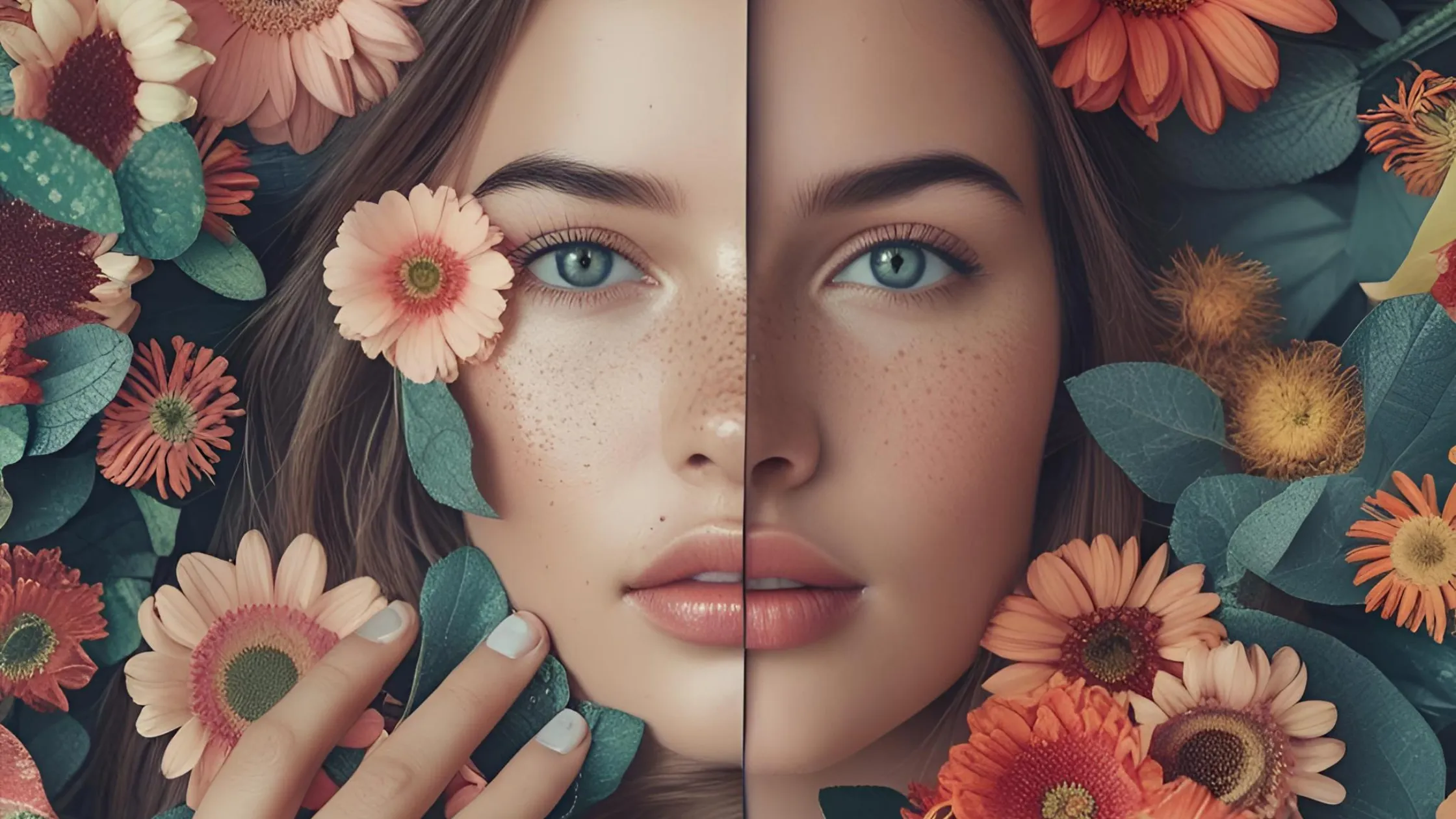
The beauty of free photo editors is their accessibility and versatility.
Advertisements
Tools like Canva, GIMP, and Photopea offer robust functionality, from layers and masks to advanced filters, allowing beginners and amateurs to create sophisticated compositions.
However, the success of an assembly depends not only on the tool, but on the strategic approach behind it.
Why not transform your photos into visual narratives that capture attention and evoke emotions?
Let's dive into best practices, practical examples, and tips to maximize the potential of these tools.
Before we begin, it's essential to understand that creating amazing montages requires more than just pasting images together.
In this sense, it's like orchestrating a symphony: each element needs to be in harmony, with purpose and balance.
According to Adobe research, 681% of consumers are more likely to engage with visual content that tells a clear story.
See also: WhatsApp Phishing: How Does It Work and Why Is It So Effective?
With that in mind, this article offers a complete guide to creating memorable montages, with clear steps, original examples, and answers to the most common questions.
Choosing the Ideal Free Photo Editor

Choosing the right free photo editor is the first step to creating impactful montages.
Each tool has unique strengths, and the decision depends on your skill level and the type of project.
For example, Canva is ideal for beginners due to its intuitive interface and ready-made templates, while GIMP offers advanced features for those looking for complete control over every pixel.
++ How to Use Notion to Organize Your Life with Your Phone
Photopea, a browser-based editor, is perfect for those who need flexibility without installing software.
In addition to usability, consider compatibility with your workflow.
Tools like Fotor stand out for their batch editing capabilities, ideal for projects that require visual consistency, such as social media montages.
On the other hand, Pixlr is excellent for quick edits, with filters and effects that speed up the creative process.
So, evaluate your needs: do you need ready-made templates or would you rather start from scratch?
This initial reflection saves time and ensures results aligned with your vision.
++ Metaverse in Education: Benefits of Immersive Learning
To help you choose, check out the table below, which compares the main free photo editors based on features and target audience.
Free Photo Editors: Table:
| Editor | Main Features | Target Audience | Advantages | Limitations |
|---|---|---|---|---|
| Canva | Ready-made templates, drag-and-drop editing, filters | Beginners and marketing professionals | User-friendly interface, ideal for social networks | Limited advanced features |
| GIMP | Layers, masks, advanced retouching tools | Intermediate to advanced users | Highly customizable, open-source | Initial learning curve |
| Photopea | Photoshop-like interface, PSD support | Intermediate users | No installation required, lightweight | Depends on internet connection |
| Pixlr | Ready-made filters, quick editing, cloud integration | Beginners and content creators | Fast and affordable | Fewer options for complex projects |
| Fotor | Batch editing, HDR effects, automatic collages | Small entrepreneurs | Great for large-scale projects | Some premium features |
When choosing, test at least two options to find the one that best suits your style.
After all, the perfect editor is one that turns your ideas into reality without unnecessary complications.
Planning Your Build: The Foundation for Success
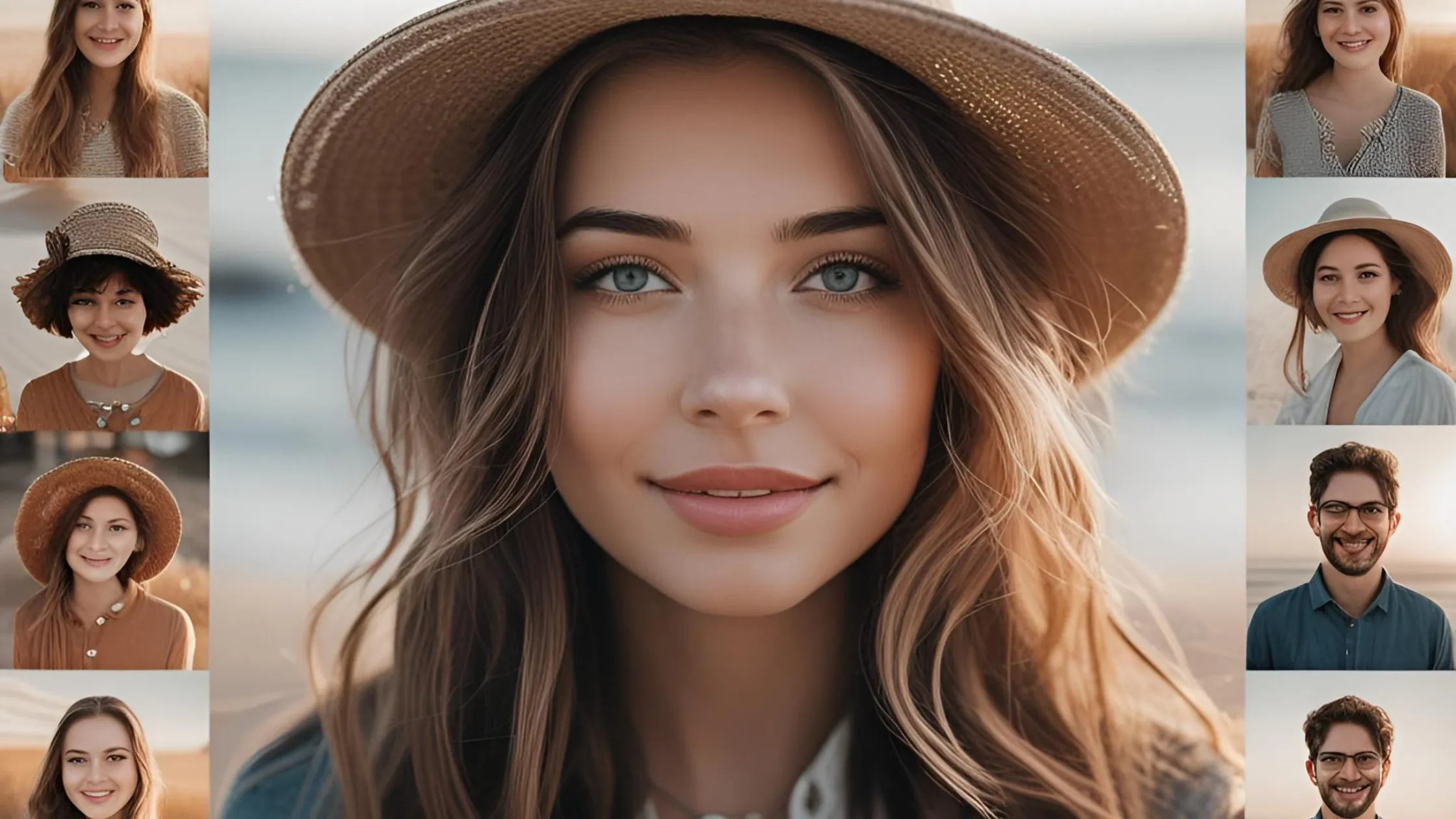
An amazing build starts with solid planning.
In this sense, before opening any free photo editor, define the objective of your composition.
Are you creating a promotional piece, a work of art, or a personal keepsake?
This clarity guides choices such as color palette, visual style and arrangement of elements.
For example, an Instagram montage might require vibrant tones and centered composition, while an artistic collage might explore contrasts and asymmetries.
Furthermore, another crucial aspect is the selection of images.
Choose photos with adequate resolution and suitable lighting to avoid artificial results.
Also, think about visual storytelling: each element should contribute to the central message.
A smart technique is to create an initial sketch, even if it's just a hand-drawn draft, to visualize the arrangement of the elements.
This also avoids unnecessary adjustments and keeps the focus on the story you want to tell.
Finally, consider visual balance. Use the rule of thirds to position key elements and create hierarchy with contrasting sizes and colors.
Tools like Canva offer grids that make this alignment easier, while GIMP allows for precise adjustments with layers.
Well-executed planning is like building a house: with a solid foundation, the rest flows naturally.
Creative Techniques for Impactful Assemblies
Mastering specific techniques is what separates an ordinary montage from a masterpiece. First, explore the power of layers.
Us free photo editors Like GIMP and Photopea, layers allow you to overlay elements, adjust opacity, and create smooth transitions.
For example, when combining two images, use layer masks to blend edges and avoid harsh cuts, creating a natural integration.
Furthermore, another powerful technique is the use of filters and color adjustments to unify the aesthetic.
Imagine your montage is a painting: all parts need to share the same “light”.
Adjust hue, saturation, and brightness to ensure images appear to belong to the same visual universe.
Tools like Pixlr offer preset filters that simplify this process, while Fotor allows manual adjustments for more control.
Finally, experiment with typography and graphic elements.
Adding text or icons can reinforce the montage's message.
In Canva, for example, you can choose fonts that complement the style of the composition, while Photopea lets you import vectors for custom details.
The key is to keep it simple: each element should have a clear purpose, without overwhelming the design.
Example 1: Promotional Montage for Small Businesses
Imagine you own a coffee shop and want to create a montage to promote a new seasonal latte.
So, using Canva, start by selecting an Instagram post template.
Choose a high-quality photo of the latte, with steam rising from the cup, and pair it with an image of roasted coffee beans in the background.
Adjust the opacity of the background image to 30% and apply a warm filter to unify the tones.
Add handwritten text that says “Try our Vanilla Latte!” and finish with the coffee shop logo in the bottom corner.
The result is a vibrant setup that attracts customers without feeling forced.
Example 2: Artistic Collage with Personal Memories
For a personal montage, like a birthday gift, use GIMP. Gather five meaningful photos, such as travel moments or celebrations.
Create a blank canvas and arrange the photos in a circular layout, using the transform tool to slightly rotate each image to create dynamism.
Apply a layer mask to soften the edges, giving a vignette effect.
Finally, finish with a textured background, like aged paper, and add an inspirational quote in a serif font.
This montage not only preserves memories, but transforms them into a work of art.
Optimizing for Social Media and Other Platforms
Assemblies created with free photo editors come to life when optimized for the medium in which they will be displayed.
Each platform has specific size and format requirements.
For example, an Instagram Stories post requires dimensions of 1080×1920 pixels, while a LinkedIn banner works best at 1584×396 pixels.
Tools like Canva offer presets for these dimensions, ensuring your montage fits perfectly.
In addition to size, consider audience behavior.
On TikTok, dynamic montages with quick transitions and vibrant colors tend to be more engaging, while on Pinterest, detailed and informative compositions attract clicks.
Use tools like Pixlr to add subtle animations, like a glow effect, that grab attention without being over the top.
Visual consistency is also crucial: maintain the same color palette and style across all your montages to reinforce your visual identity.
Finally, optimize loading. Large images can drive away visitors, especially on mobile devices.
Therefore, use the editors' export function to save in formats like JPEG or PNG with balanced compression.
Fotor, for example, lets you adjust image quality before saving, ensuring lightweight files without significant loss of detail.
Free Photo Editors: Frequently Asked Questions
The table below answers the most common questions about using free photo editors for assemblies:
| Question | Response |
|---|---|
| Which free editor is best for beginners? | Canva is ideal for its intuitive interface and ready-made templates. |
| Can I use free editors for professional projects? | Yes, tools like GIMP and Photopea offer advanced features suitable for professional use. |
| Is it possible to edit montages on mobile devices? | Yes, apps like Canva and Pixlr have robust mobile versions. |
| How can I prevent my montage from looking amateurish? | Plan the composition, use layers and color adjustments to harmonize elements. |
| Do free editors support PSD files? | Photopea is the best option as it natively supports PSD files. |
Overcoming Common Challenges
One of the biggest challenges when using free photo editors is the learning curve of more advanced tools like GIMP.
To overcome this, start with specific tutorials on YouTube or official documentation.
Another common difficulty is the limited features in free versions.
For example, Canva may restrict access to certain premium elements, but you can get around this by using your own images or free vectors from sites like Unsplash.
The quality of the source images can also be an obstacle.
Low-resolution photos or photos with inconsistent lighting compromise the final result.
Fix this by using free image libraries like Pexels and adjusting the exposure in the editor.
Also, avoid overloading the assembly with too many elements.
Simplicity is your ally: a clean, focused composition will always have more impact.
Finally, practice is key. Experiment with different combinations, test new effects, and ask for feedback from friends or colleagues.
How do you think a montage can transform a simple idea into a powerful message?
With dedication and the right tools, your creations can reach a professional level at no cost.
Free Photo Editors: Conclusion
Create amazing montages with free photo editors It is a journey that combines technique, planning and imagination.
Tools like Canva, GIMP, Photopea, Pixlr, and Fotor offer everything you need to turn your ideas into memorable images.
With careful planning, creative techniques, and optimization for your target audience, your creations can captivate, inspire, and engage.
Remember: every montage is an opportunity to tell a unique story.
Whether you're promoting a business, preserving memories, or exploring your creativity, free photo editors are powerful allies.
Get started today, try out the suggested tools, and see how your ideas come to life in stunning compositions.
